Step 1
Open a PDF
It renders instantly, like a classic desktop reader. Open…, drag and drop, the Recent list, or double-click in File Explorer.

 Public beta · v0.9.2
A fast, private PDF reader with an AI assistant that runs on your own computer.
Read any PDF, then ask it questions. Every answer links to the pages it comes from: click a link and Leafrune scrolls there and highlights the sentence. Your documents never leave your computer. No account, no cloud, no telemetry.
Free · Windows 10 / 11 · 64-bit (x64)· macOS (Apple Silicon) coming soon
constleafrune={type:'PDF reader',assistant:'on-device AI',citesItsPages:true,cloud:false,account:false,telemetry:false,worksOffline:true,platforms:['Windows'],price:0,};
Step 1
It renders instantly, like a classic desktop reader. Open…, drag and drop, the Recent list, or double-click in File Explorer.
Step 2
The first time you open a document, Leafrune quietly reads its text in the background. Next time, the assistant is ready at once.
Step 3
Ask in your own words. The answer cites its pages; click a citation to jump there with the passage highlighted.
Ask in your own words: "What is this document about?", "What does section 3 say about pricing?", "What's on the last page?". The assistant finds the passages that answer you and writes a short answer from them. Click a page link and Leafrune scrolls there and highlights the sentence.
If the document doesn't cover your question, it says so instead of guessing.
The assistant uses a small model so it runs on an ordinary laptop. Answers can be incomplete or wrong; check the cited pages before you rely on one.
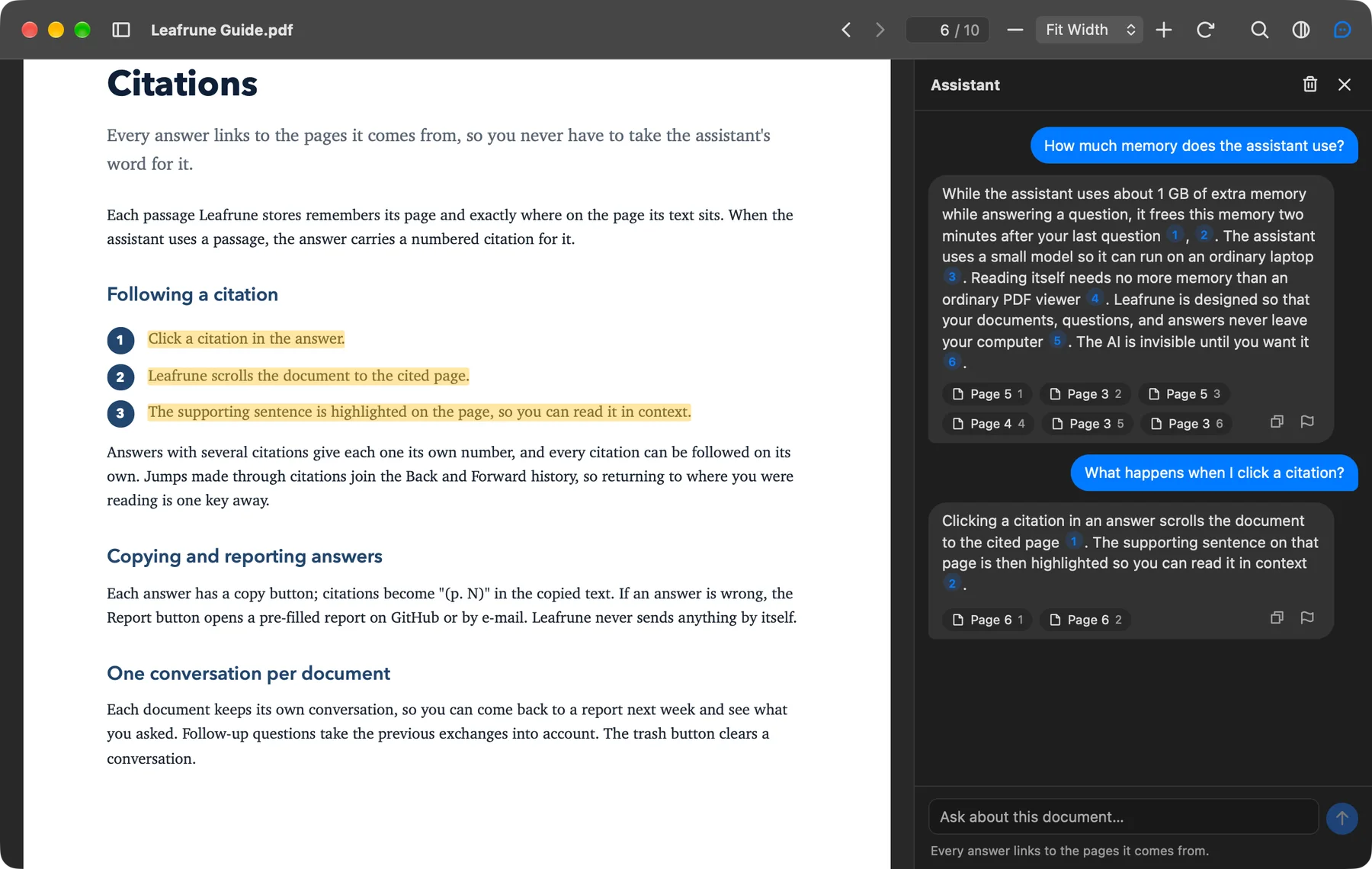
Shown on macOS. The Windows version has the same features, with a native Windows 11 look.
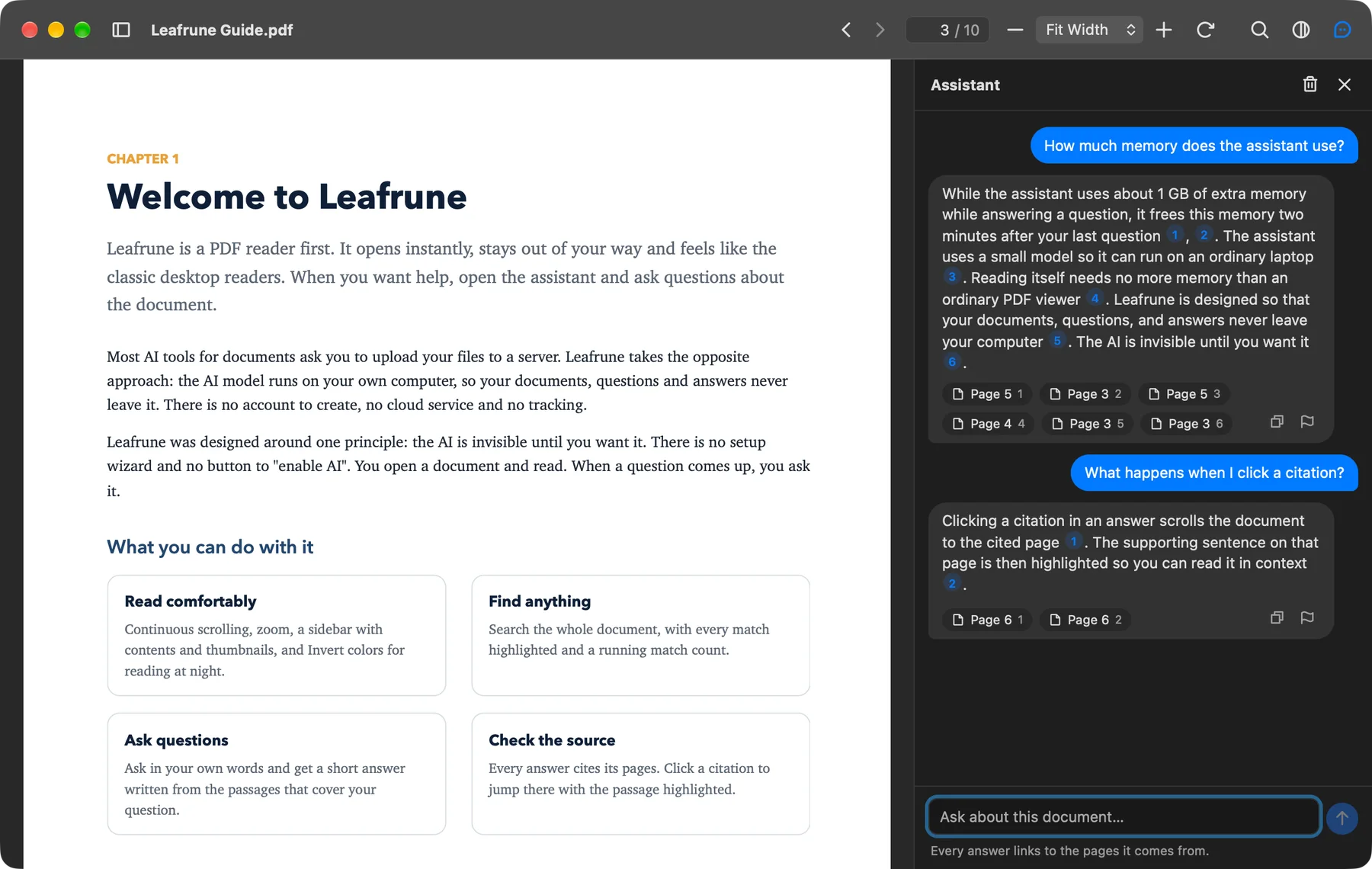
Ask in your own words
One conversation per document; follow-up questions take the earlier ones into account.
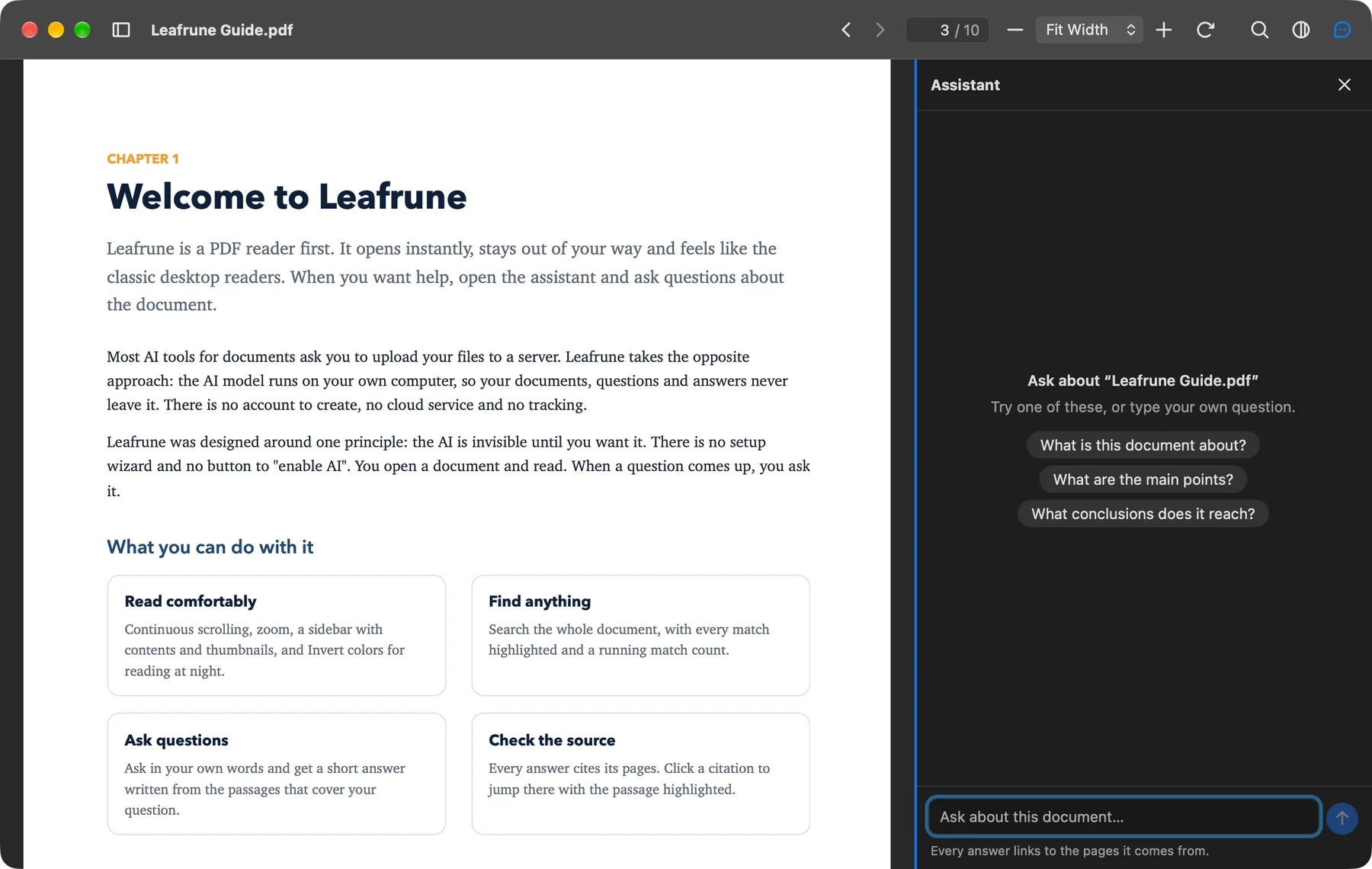
Starter questions
An empty conversation suggests three questions to begin with.
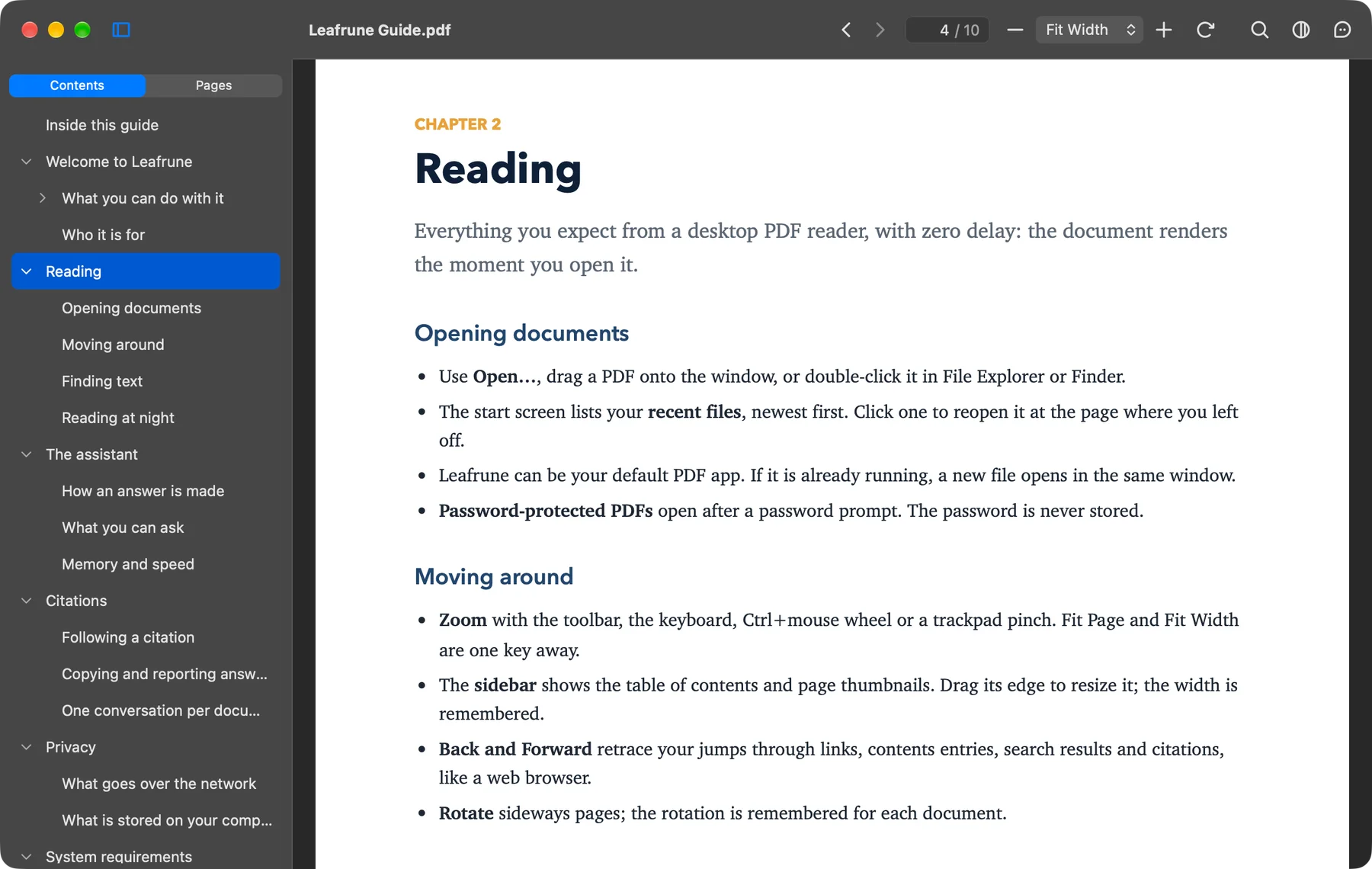
Table of contents
The sidebar lists every chapter and section; click one to jump to it.
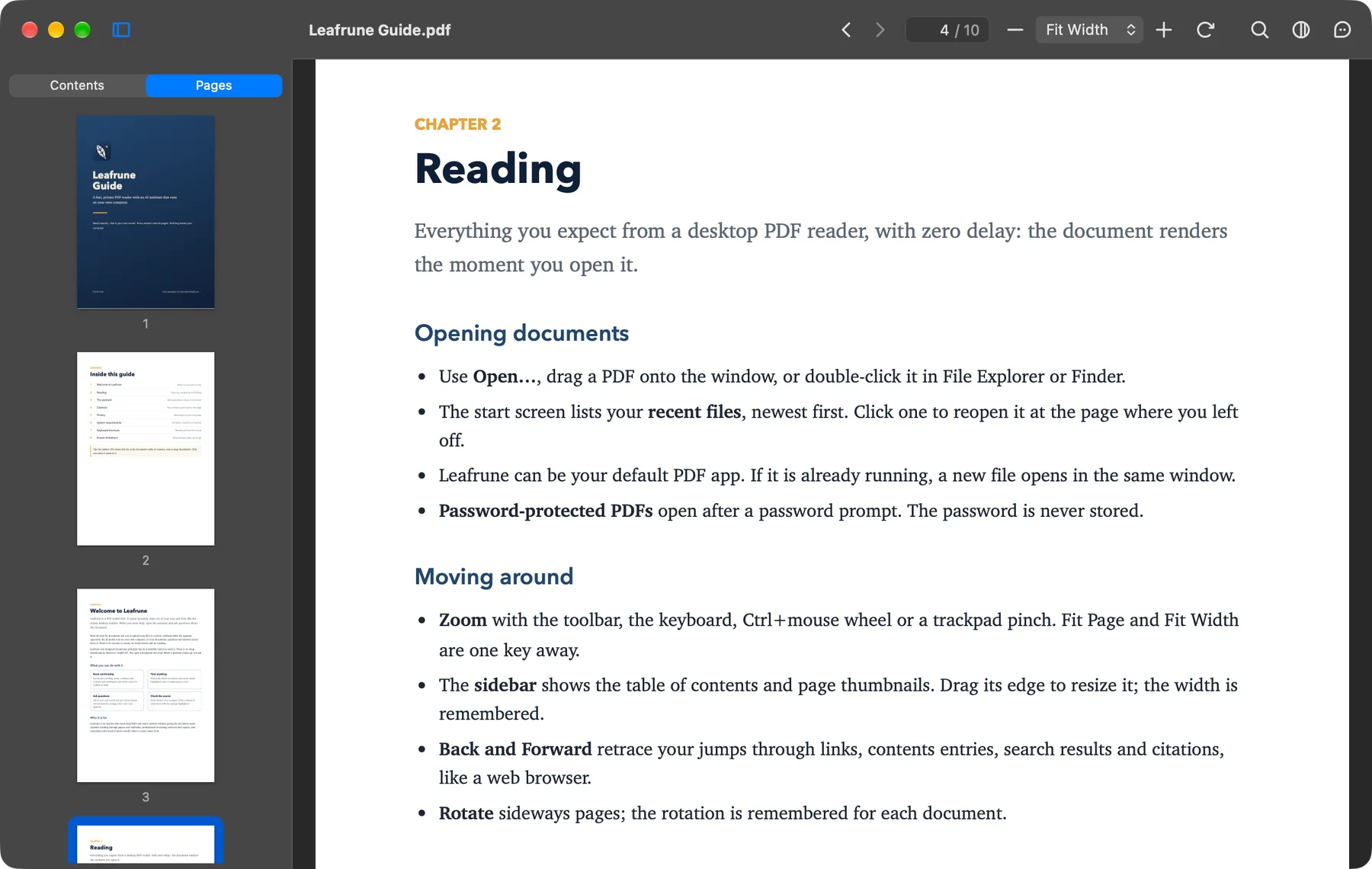
Page thumbnails
Switch the sidebar to Pages to see the whole document at a glance.
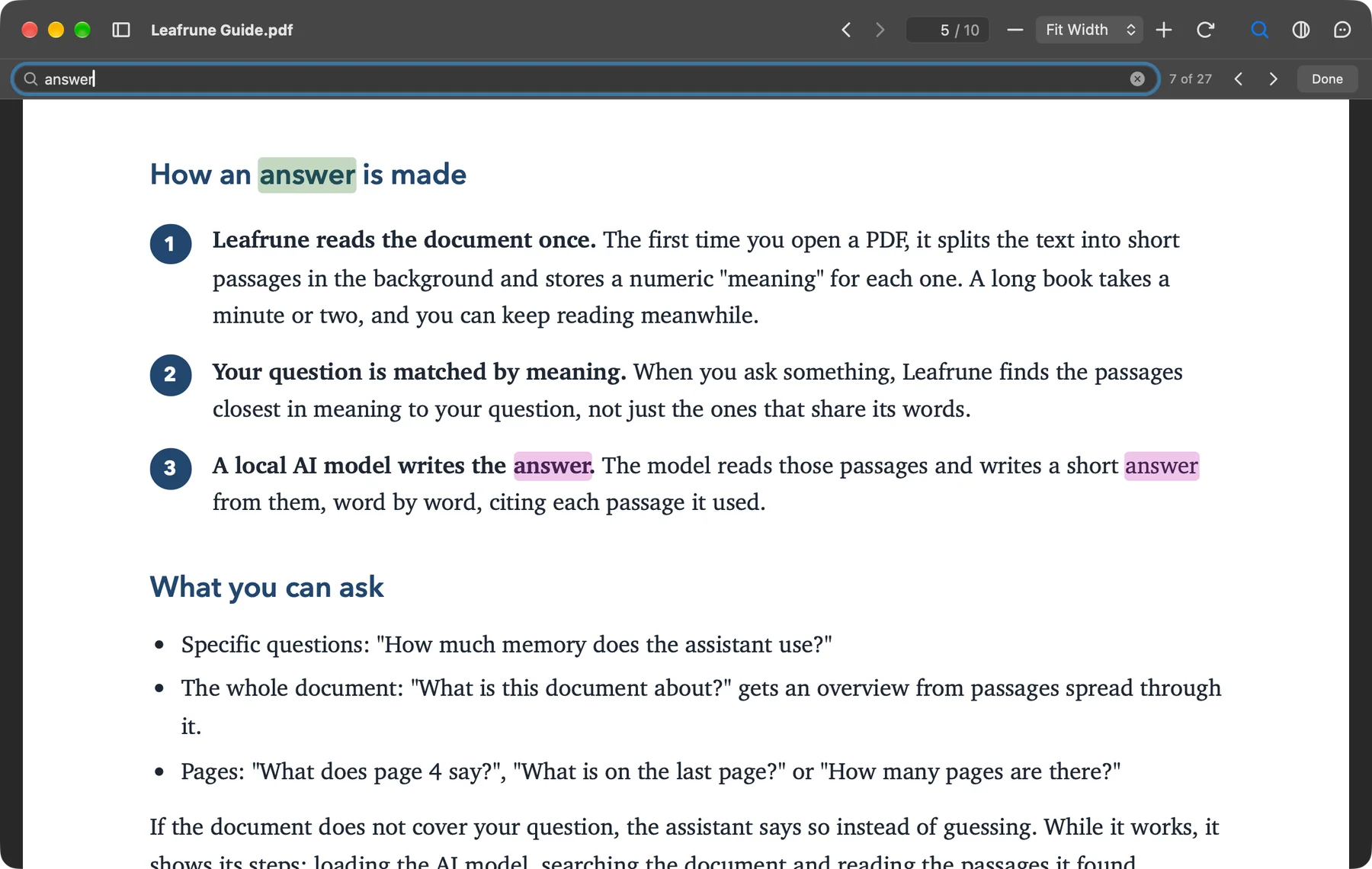
Find
Every match highlighted on the pages, with a running count.
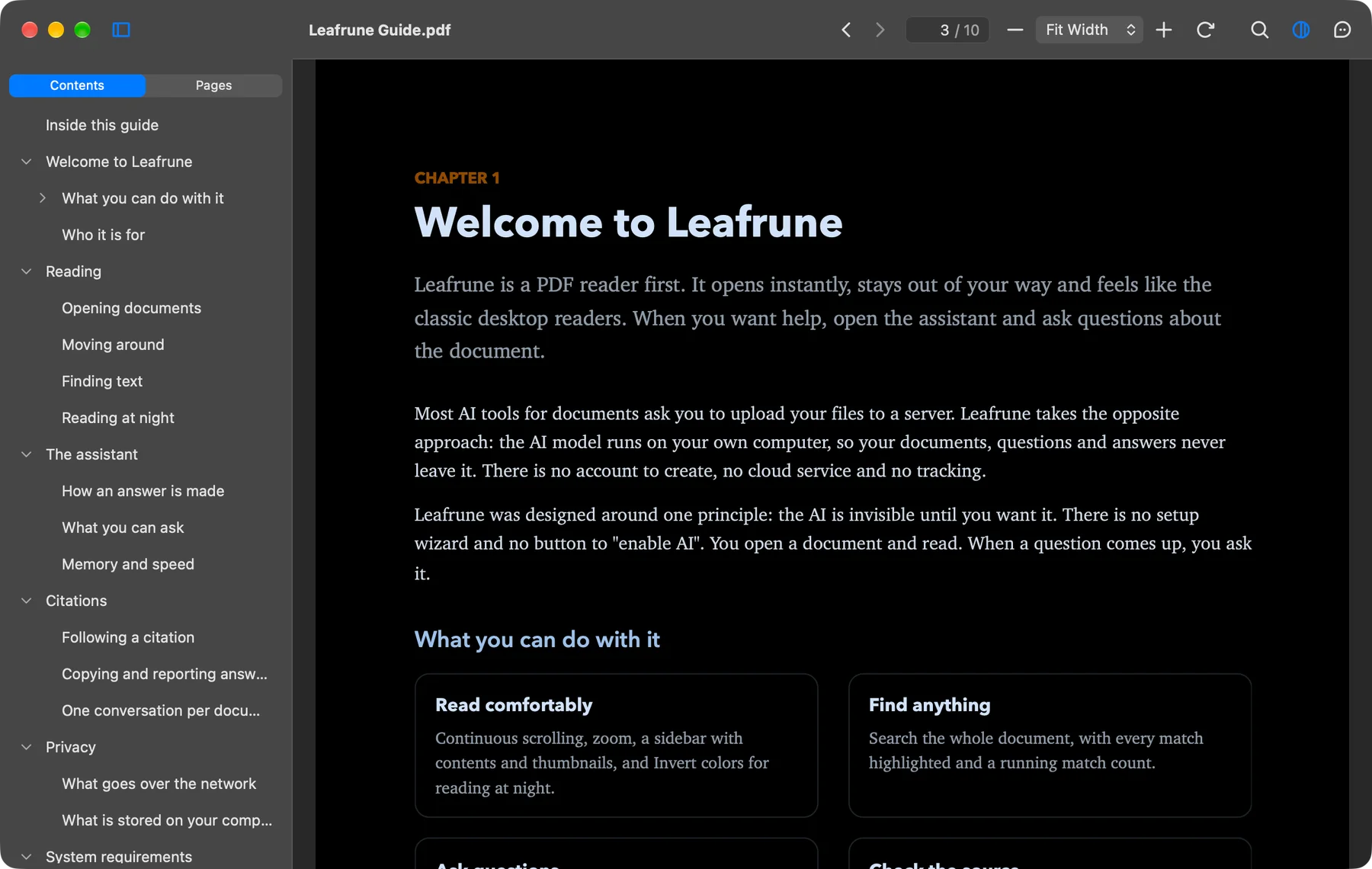
Invert colors
Light-on-dark pages for reading at night, without touching the rest of the app.
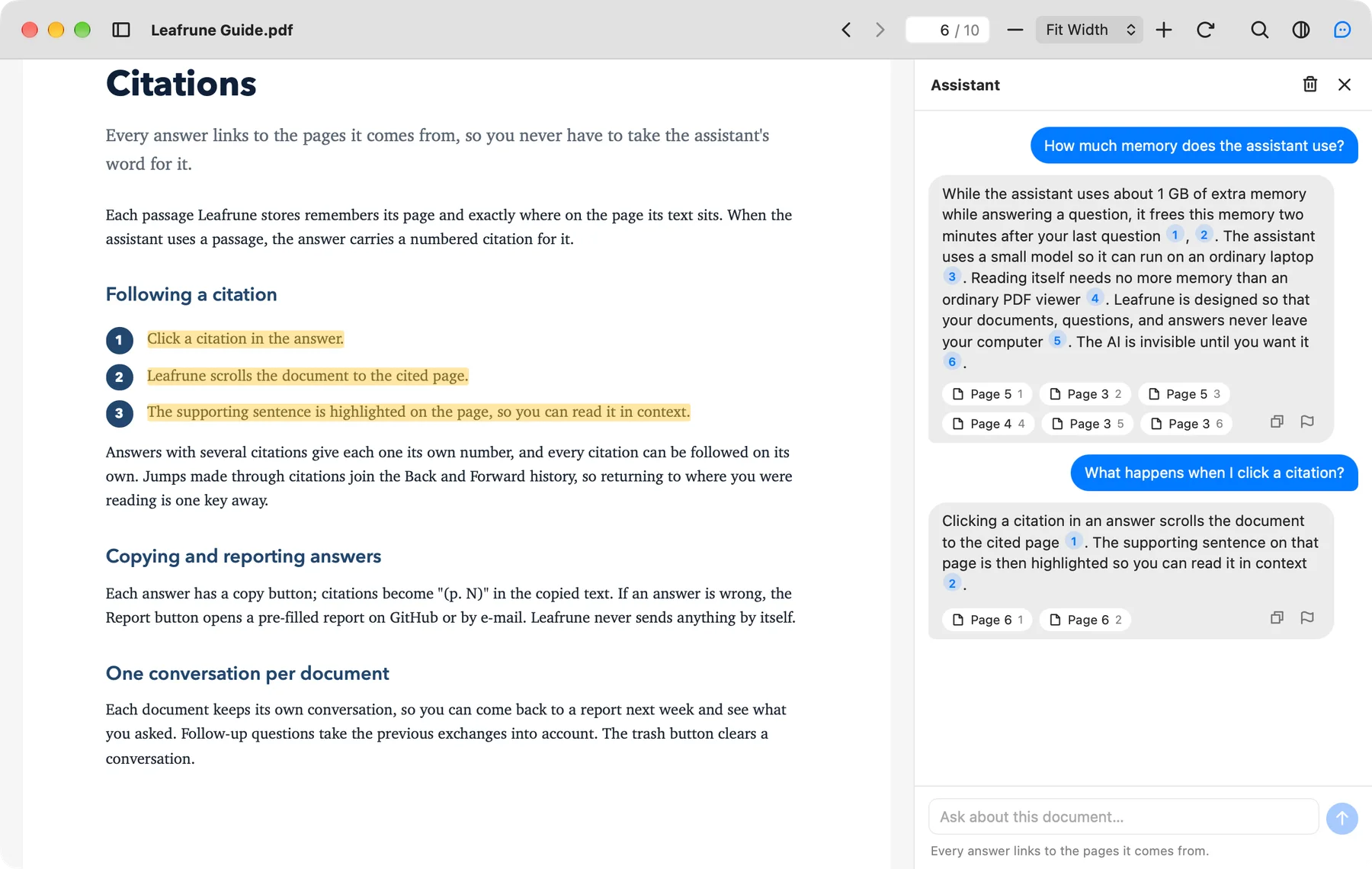
Light, Dark or system theme
The whole app follows your system setting, or the theme you pick.
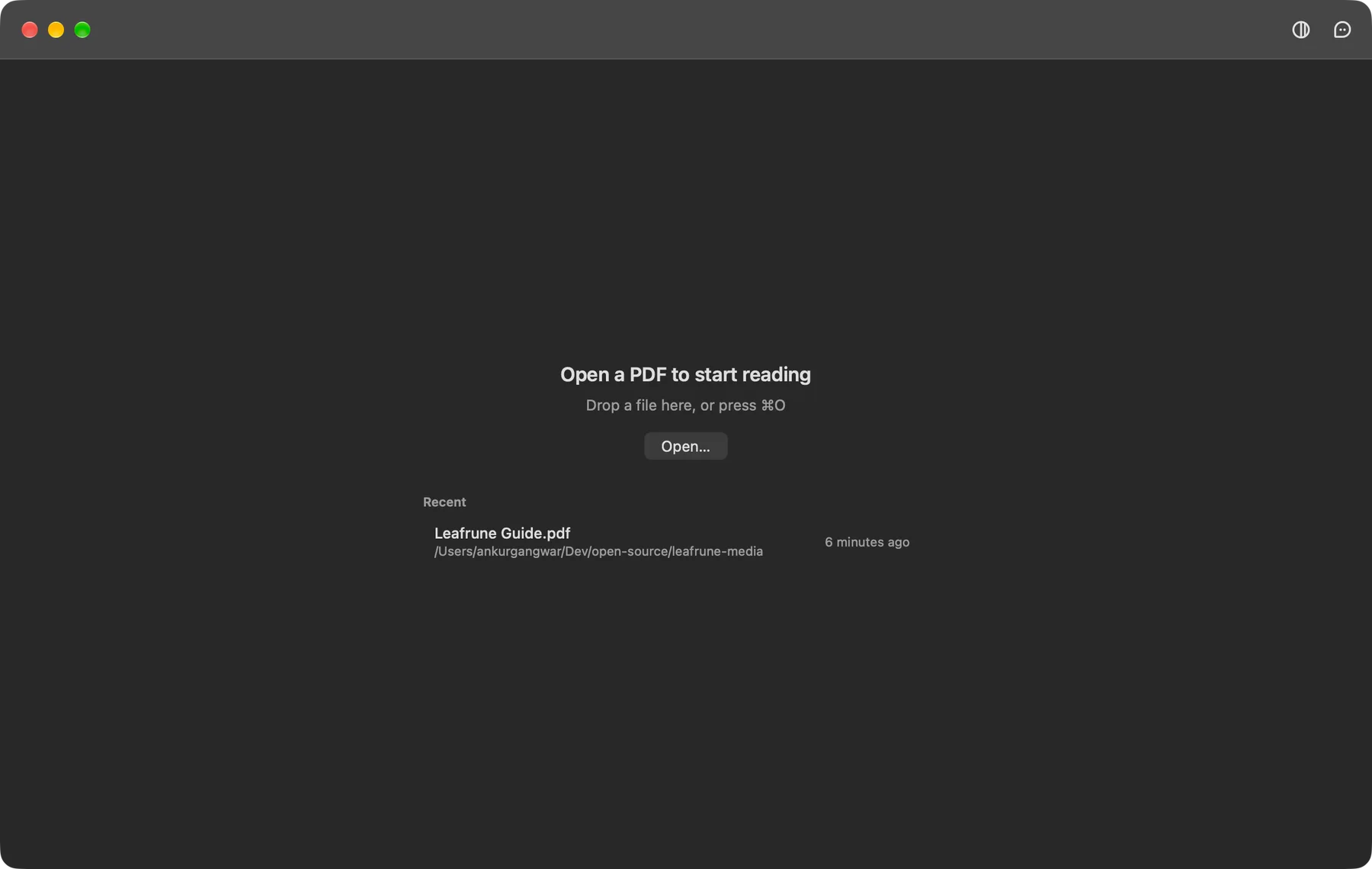
Recent files
Reopen any document at the page where you left off.
On first launch, Leafrune downloads its AI models once (about 531 MB) in the background. You can read meanwhile; a dropped connection resumes where it stopped, and every file is checked before use. After that it never needs the internet again. Privacy policy
While the assistant answers it uses about 1 GB more memory, and frees it two minutes after your last question.
| Open a PDF | Ctrl+O |
| Find | Ctrl+F |
| Next / previous match | F3 / Shift+F3 |
| Go to page | Ctrl+L |
| Back / forward | Alt+← / Alt+→ |
| Fit page / fit width | F / W |
| Sidebar | F9 |
| Invert colors | Ctrl+I |
| Assistant | Ctrl+/ |
| Full screen | F11 |
Free to use on any number of your own devices, for personal and professional use.
Windows 10 / 11 · 64-bit (x64) · Microsoft StoreWhat's new License